'%20stroke-width='70'%20stroke-linecap='round'%3e%3cpath%20d='M672%2035V139M672%201205V1309M35%20672H139M1205%20672H1309M938.5%20210.4%20990.5%20120.3M1133.6%20405.5%201223.7%20353.5M1133.6%20938.5%201223.7%20990.5M938.5%201133.6%20990.5%201223.7M405.5%201133.6%20353.5%201223.7M210.4%20938.5%20120.3%20990.5'/%3e%3cpath%20d='M601%20491.5H472.5V278.5H672A393.5%20393.5%200%201%201%20278.5%20672V278.5'/%3e%3cpath%20d='M472.5%20625V672A197.5%20197.5%200%200%200%20867.5%20672'/%3e%3c/g%3e%3ccircle%20cx='782.5'%20cy='491.5'%20r='35'%20fill='url(%23dt-sun)'/%3e%3c/svg%3e)
Features
The booking page your customers use, and the screens you use to run it.
For customers
The booking page
Customers pick a service, a day and a time, and give an email address.
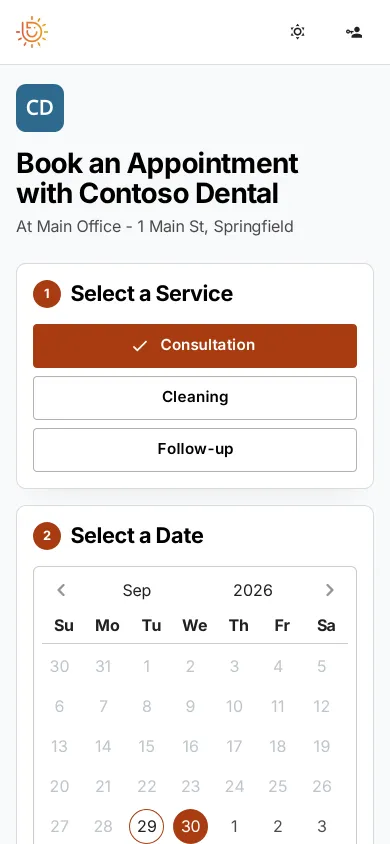
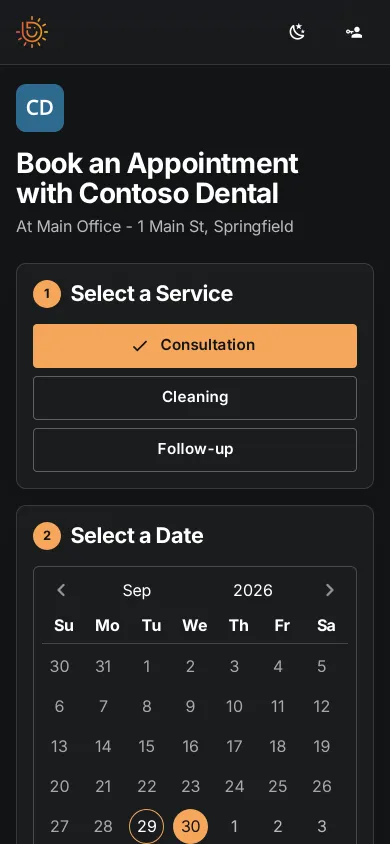
A link for every location
Each location has its own link. One more link covers the whole organization and asks which location first.
Only open times
Customers see the times that are free, within your hours, holidays and capacity.
QR codes
Each link has a QR code to download as SVG or PNG, for signs and flyers.
Your name and logo
The page is headed with your organization's name and logo.
Few questions
Only the email address is required. Name, phone and address are optional.
Map
If you've placed the location on the map, the booking page shows it.
Hidden services
Mark a service hidden from customers to take it off the booking page without deleting it.
Keyboard and screen readers
Every step works with the keyboard alone, and the page is tested with two accessibility checkers.
Confirmations
After the booking
The customer gets a confirmation to keep and a way to cancel online.
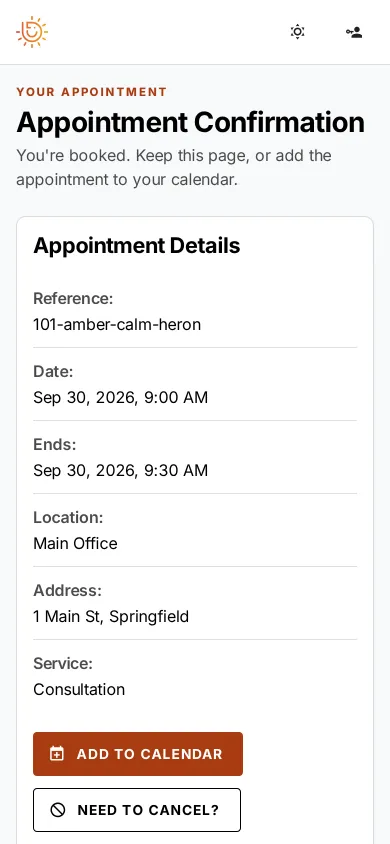
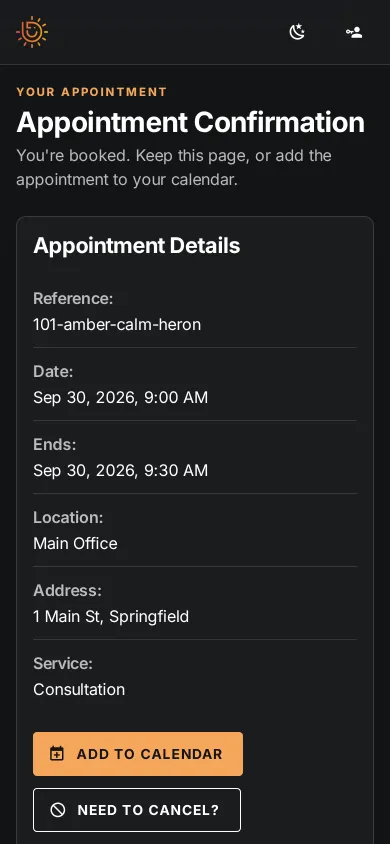
Confirmation email
Sent as soon as they book. Replies go to the location's email address.
Calendar file
An .ics file, attached to the email and on the confirmation page, for Outlook, Google Calendar and Apple Calendar.
Calendar QR code
The confirmation page and email show a QR code a phone can scan to add the appointment to its calendar.
Online cancellation
The confirmation page has a cancel button. The customer can give a reason and is emailed a cancelled calendar entry.
Reminders
By email, text or postcard, when your notification rules say. Each has a link to cancel; postcards have a QR code too.
Changes
If you move an appointment or change its service, the customer is emailed the new details and calendar file.
Scheduling rules
Hours, holidays and capacity
You set these once. The booking page follows them.
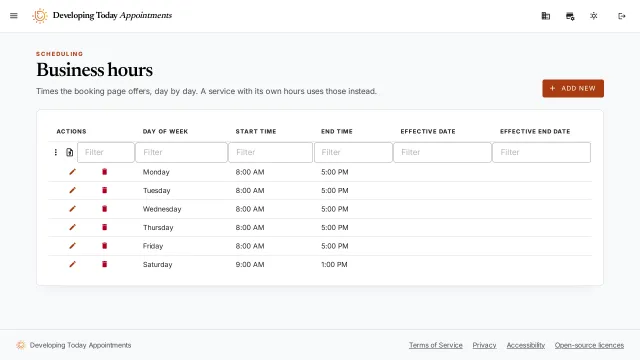
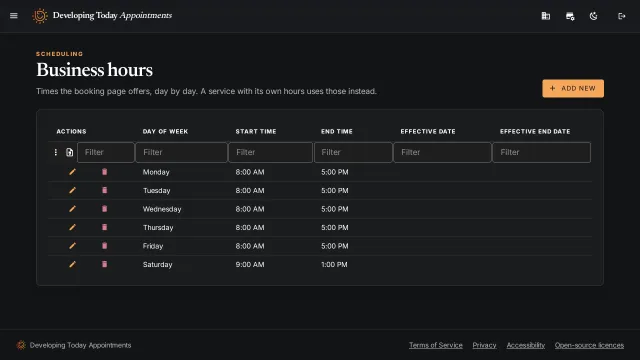
Business hours
Hours for each day of the week, for a location or for one service.
Holidays
Single days or repeating ones, such as every Sunday, for a location or one service.
Lengths and buffers
Each service has a length, and optional time before and after it.
Capacity
A limit on how many bookings a location, and a service, take at the same time.
Day to day
Managing appointments
The Appointments screen shows the same bookings as a calendar and as a list.
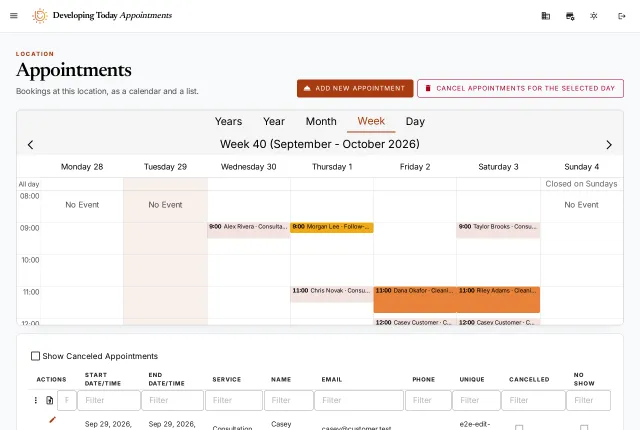
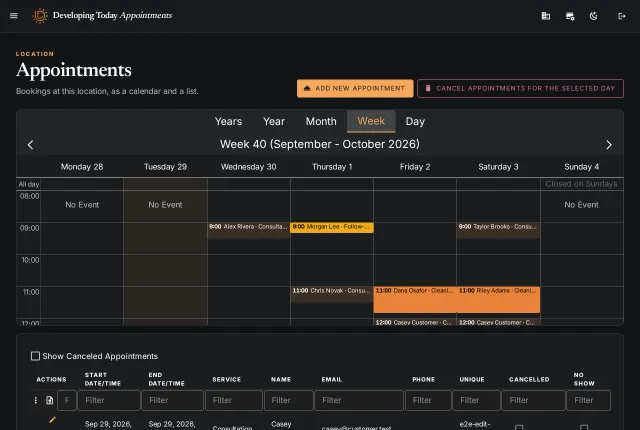
Calendar and list
The calendar is colored by service. The list can be filtered, with or without cancelled bookings.
Edit
Change the service, the time or the customer's details, or mark a no-show.
Cancel a day
Cancel every booking on a date. Each customer is emailed.
Book for a customer
Staff can book for a customer who calls or walks in.
Export
Download the list as a CSV file.
Your team
Locations, staff and sign-in
One organization with as many locations as you need.
Locations
Each location has its own address, time zone, contact details, hours, services and booking page. Unpublished locations are left out of the organization-wide link.
Staff
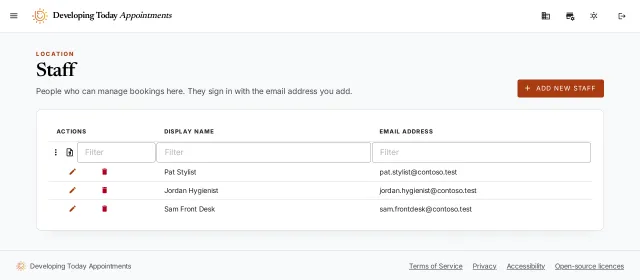
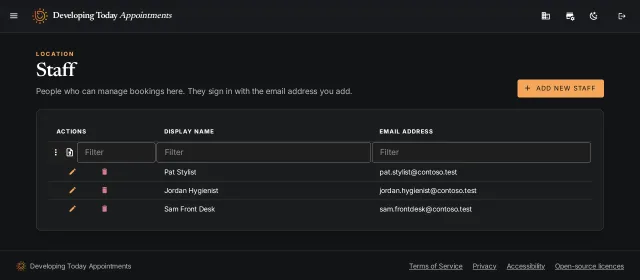
Add staff by email address, to one location or to the whole organization. They see only what they're added to.
Sign-in
With a Microsoft (work, school or personal), Google or Apple account.
Scale
High-volume scheduling
Built for statewide public-sector volumes as well as single locations.
Unlimited locations and staff
On every plan.
Capacity per time slot
A time stops being offered as soon as it's full.
One link for a network
The organization-wide link lets people choose their nearest office.
Backups and monitoring
Data is backed up every night, and the service is monitored around the clock.
Enterprise
An isolated environment, your own domain, API access and onboarding help.